
Creating a new Team
July 2020
Overview
We've heard from multiple customers that the same crew is usually working on the same Projects. That's why we created the ability to add a Team! This article will walk you through everything you need to know to get started.
Teams
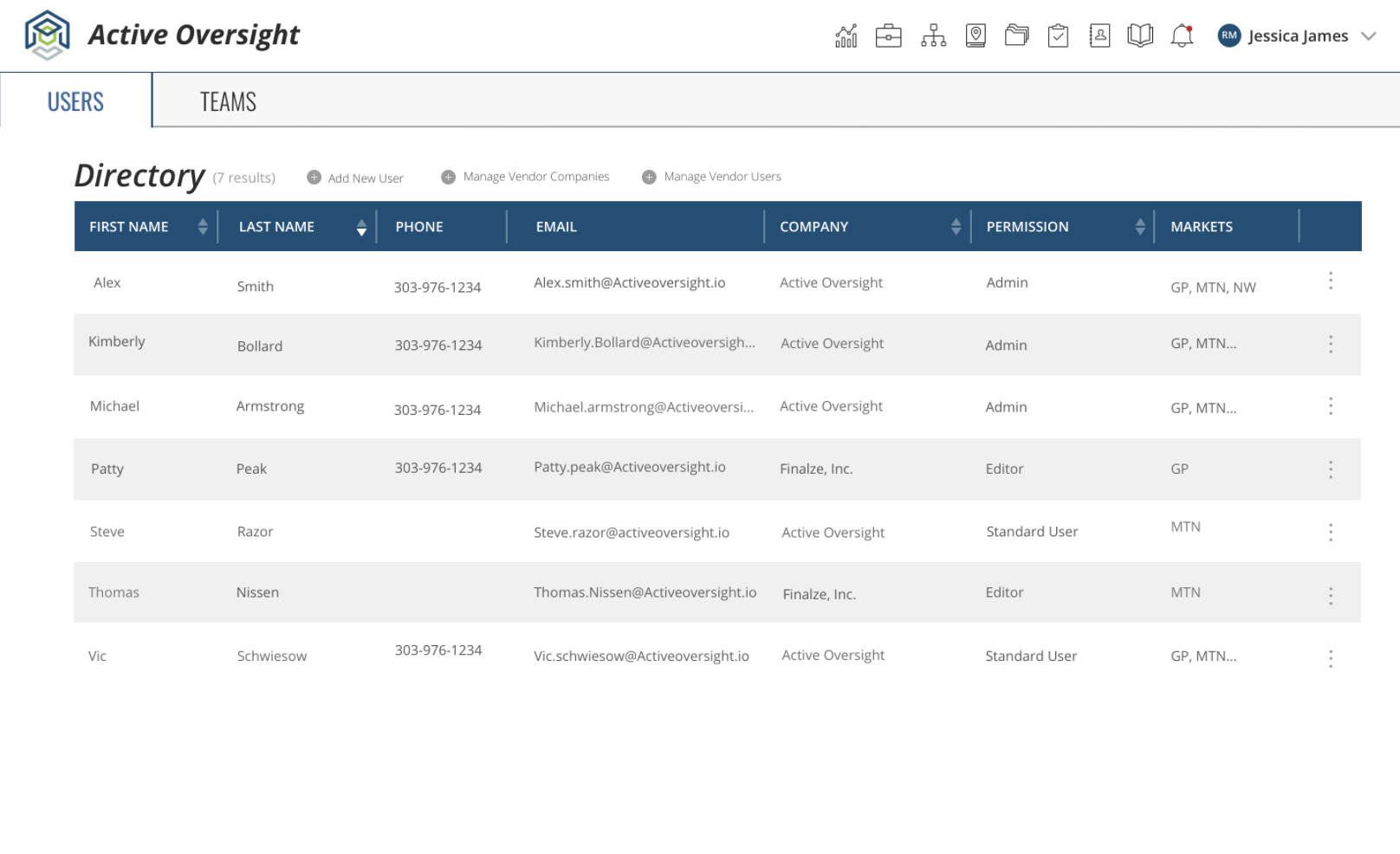
View the new Teams tab
- Log in to Active Oversight on your browser
- Navigate to the Directory
- Select "Teams"
Add your first Team
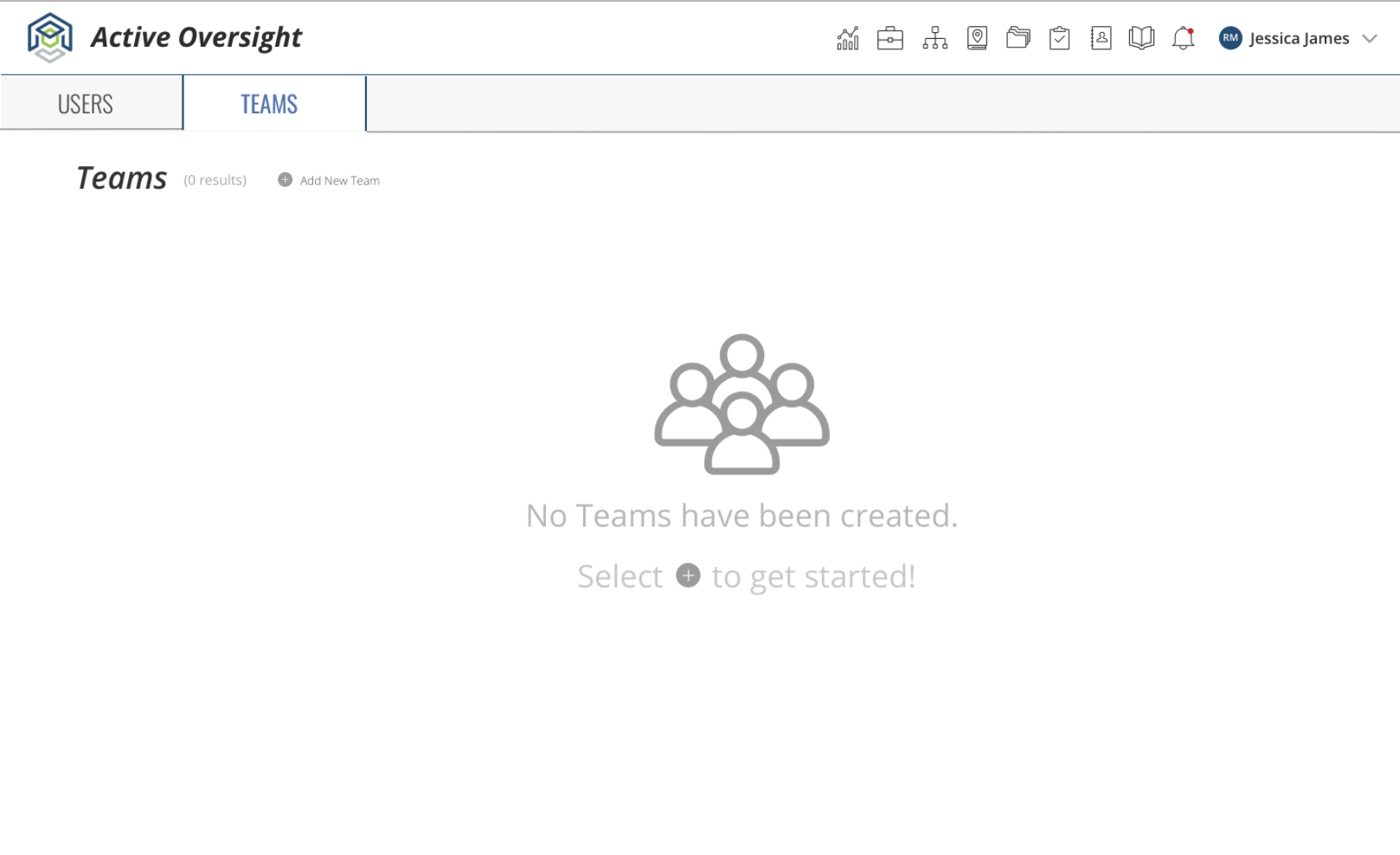
1. To add your first Team, select + Add New Team
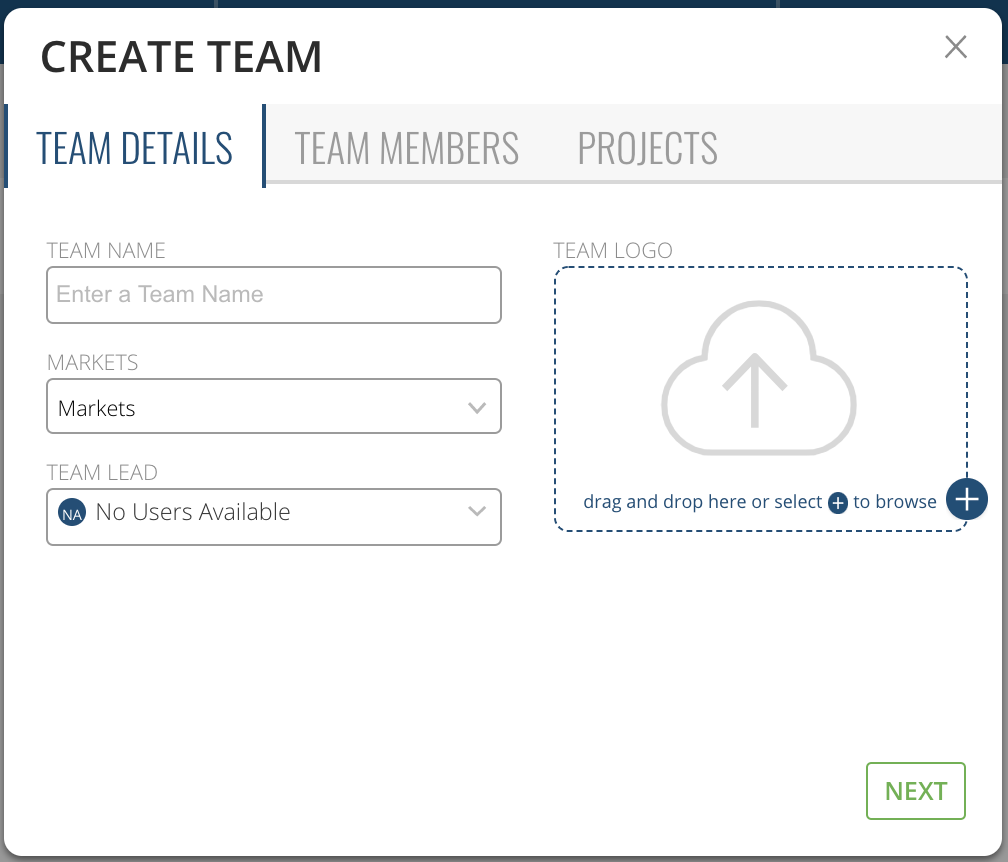
2. Fill in your Team Name (required), the Markets that your Team will be working in (required) and add a Team lead and logo if you want (optional).
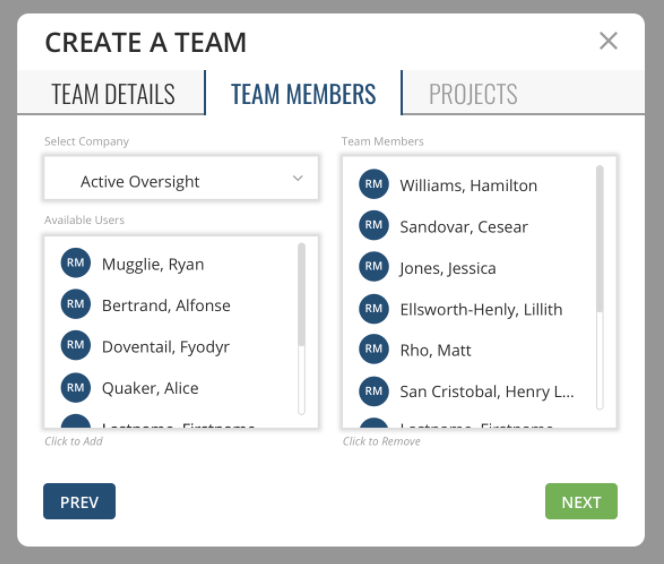
3. Next, select your Team members. These can be users from your internal company or vendor companies. Choose the Company you want to view users for by selecting the "Select Company" dropdown, and simply click on the user's name to add them to the Team.
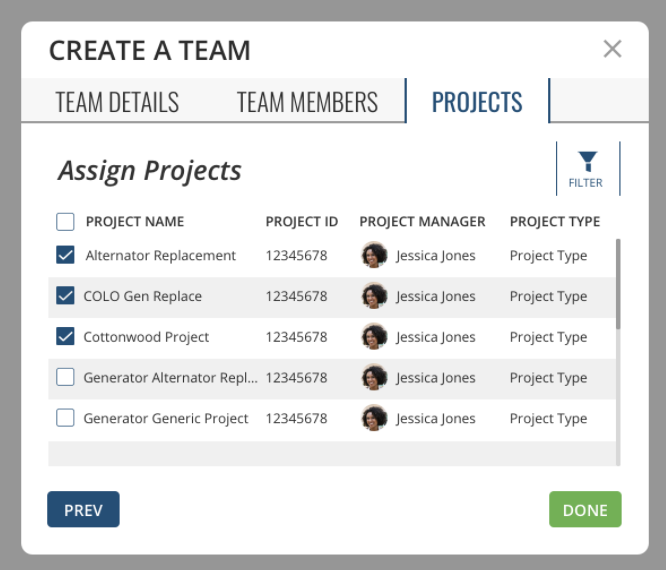
4. Once you have added Team Members, you can hit "Next". This will bring you to your Projects tab. This is where you can add your Team to Projects. If your Projects aren't there yet no worries! You can add them later by coming back to this window or accessing the Project directly. To add your Team to your Project, find the Project you want, select the checkbox next to it and hit "DONE".
Editing a Team
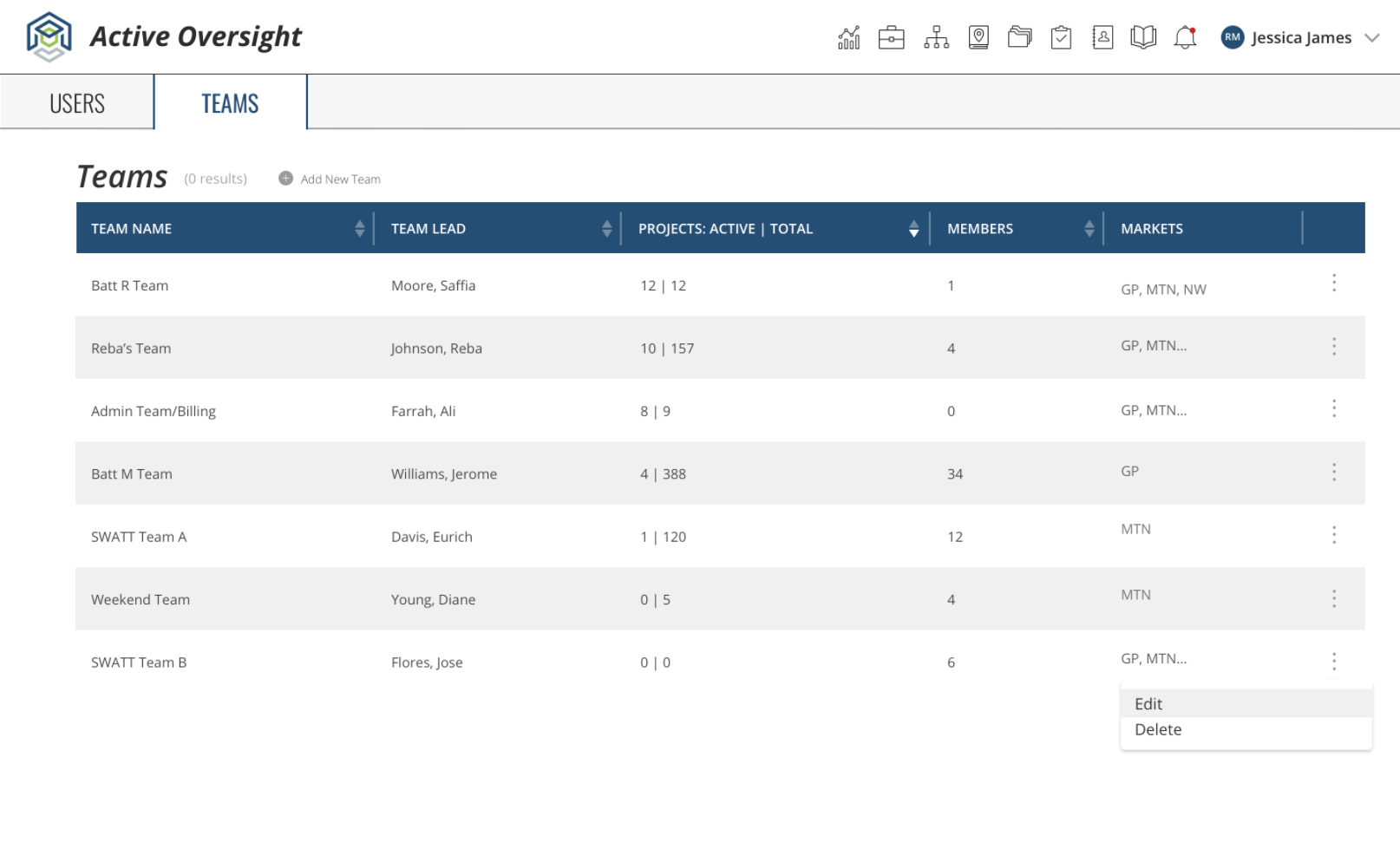
- Once you've created a Team, you can always go back and edit. To do this, access the Teams tab in the directory
- Hover over the Team you want to edit
- Select the ellipses (three vertical dots) on the far right
- Hit "Edit"
- When you are done, hit "Save"
Comments
0 comments
Please sign in to leave a comment.