
Active Oversight Reports
July 2019
Overview
The goal of our Project Analysis report is to help you reduce the ad hoc nature of the work that's being done in the field. This report gives you a detailed view of the work that was completed across similar projects to provide additional insights for you and your team, helping you to clearly outline the requirements of a job.
How the Project Analysis Report Works
Who Can Access The Project Analysis Report?
Any internal user who has Admin or Editor Permissions
How Do I Access It?
-
Log in to the web version of Active Oversight
-
Select the reporting icon

-
Select "Project Analysis"

How Do I Get My Projects To Display?
To be able to see the comparison, your project must be attached to a Project Type and Template
-
Once your Project Analysis Report has loaded, select the Dropdown "Project Type" and choose the Project Type you wish to analyze
-
Next, select the version and Template
-
If you wish, you can choose to only view Projects that are completed or in progress by filtering by Project Status.
-
Once you've selected a Project Type and Template, your report will load
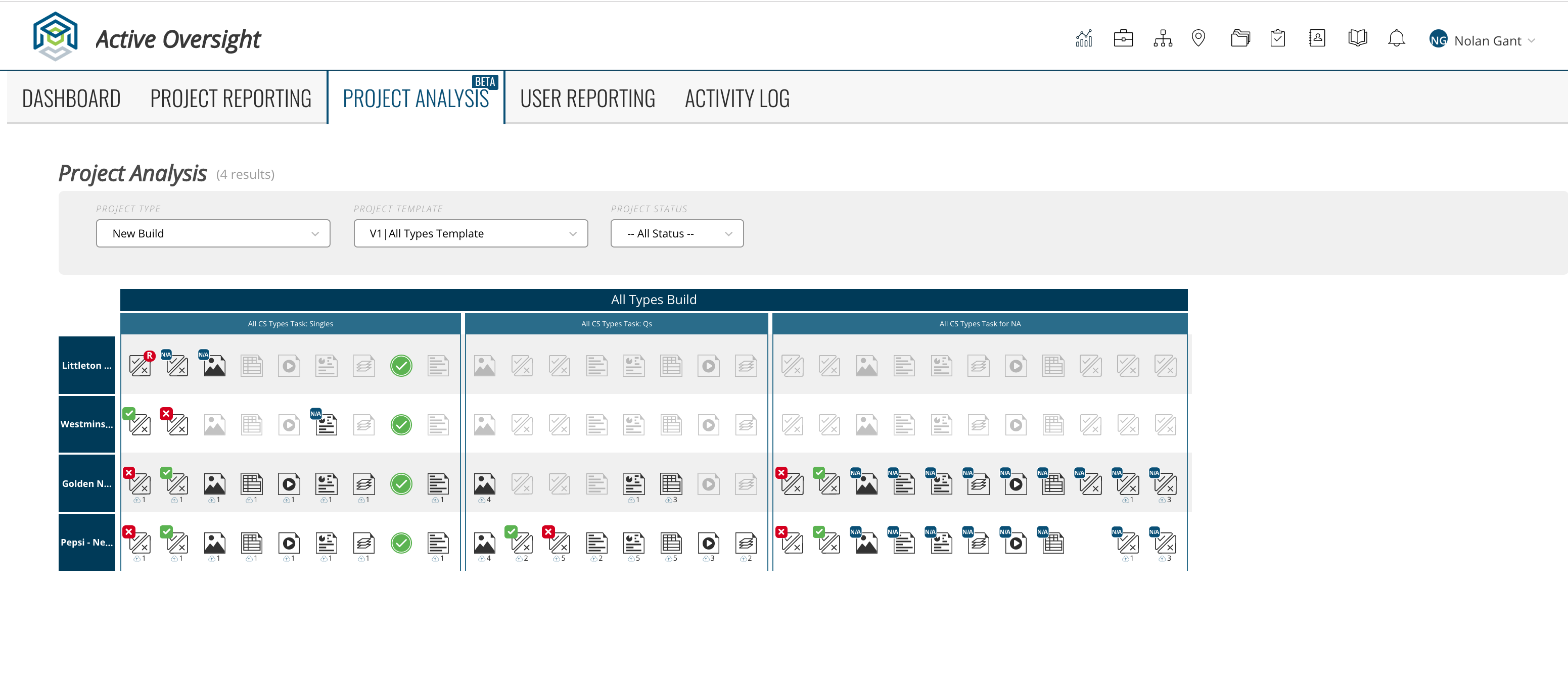
Report Breakdown
-
The first top Header will display all of your Builds in the Project
-
Below that you will find all Tasks under each Build
-
On the left sidebar, you will see each Project Name
-
Within each Task, you will have Completion Steps
-
Completion Steps that have NOT been acted upon will appear light gray
-
Completion Steps that have been acted upon will appear dark gray and will either have an answer showing and or the number of uploads
Do you have additional questions? Contact us at activeoversight@finalze.zendesk.com.
Comments
0 comments
Please sign in to leave a comment.