
Active Oversight Forms
July 2019
Overview
Forms are finally here! You can now easily add a Form to your Tasks as a new Completion Step. Please note that in order to add a Form to a Task, you will need to have the editor permissions.
Let's get started on How to Create A Form!
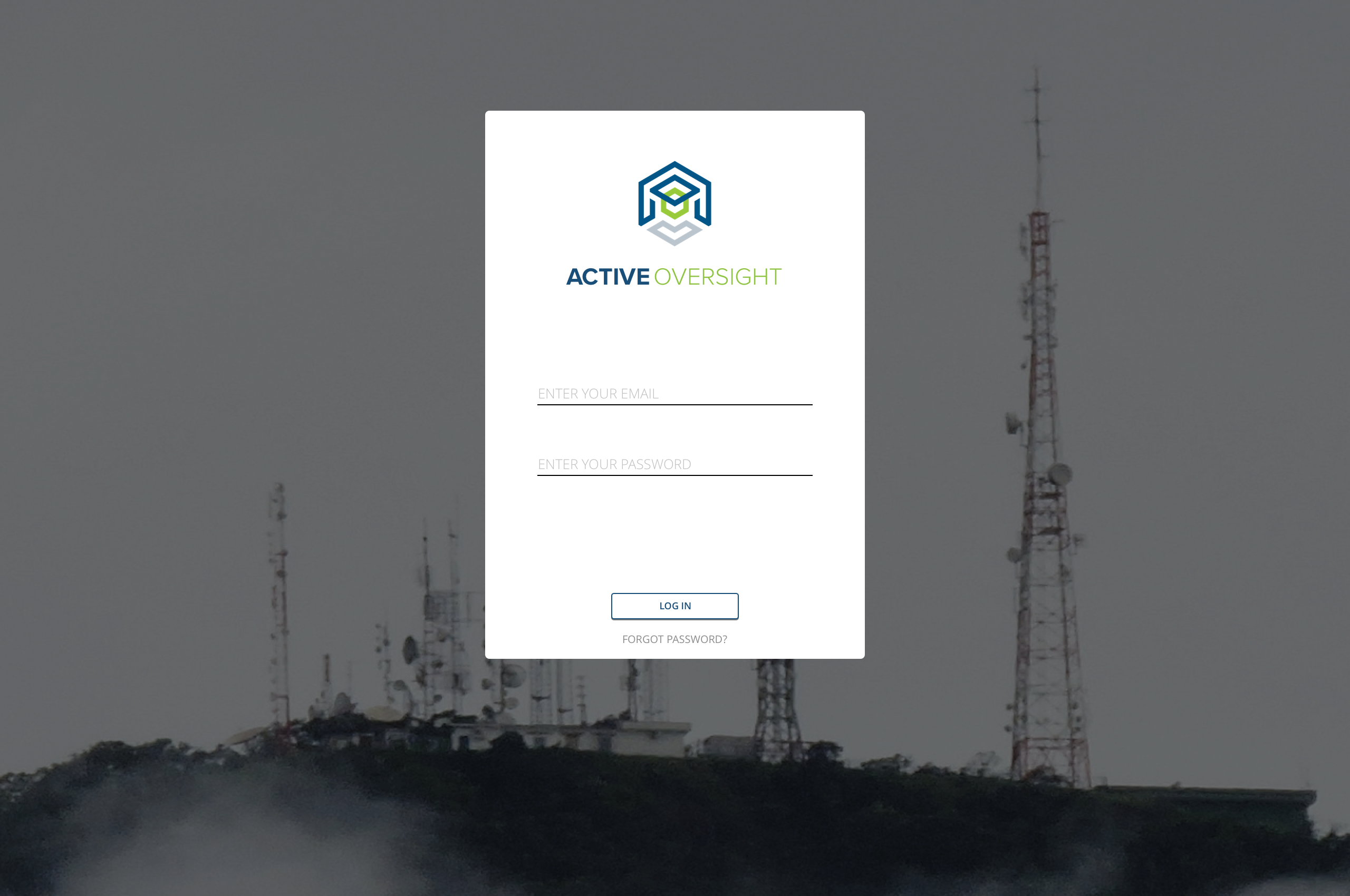
Login to https://ao.finalze.com
Adding a Form through a Project
- Click on the Project that you would like to add a Form to
- Click on the Build
- Click on the Task
- Click on the pencil icon in the upper right to edit the Completion Steps

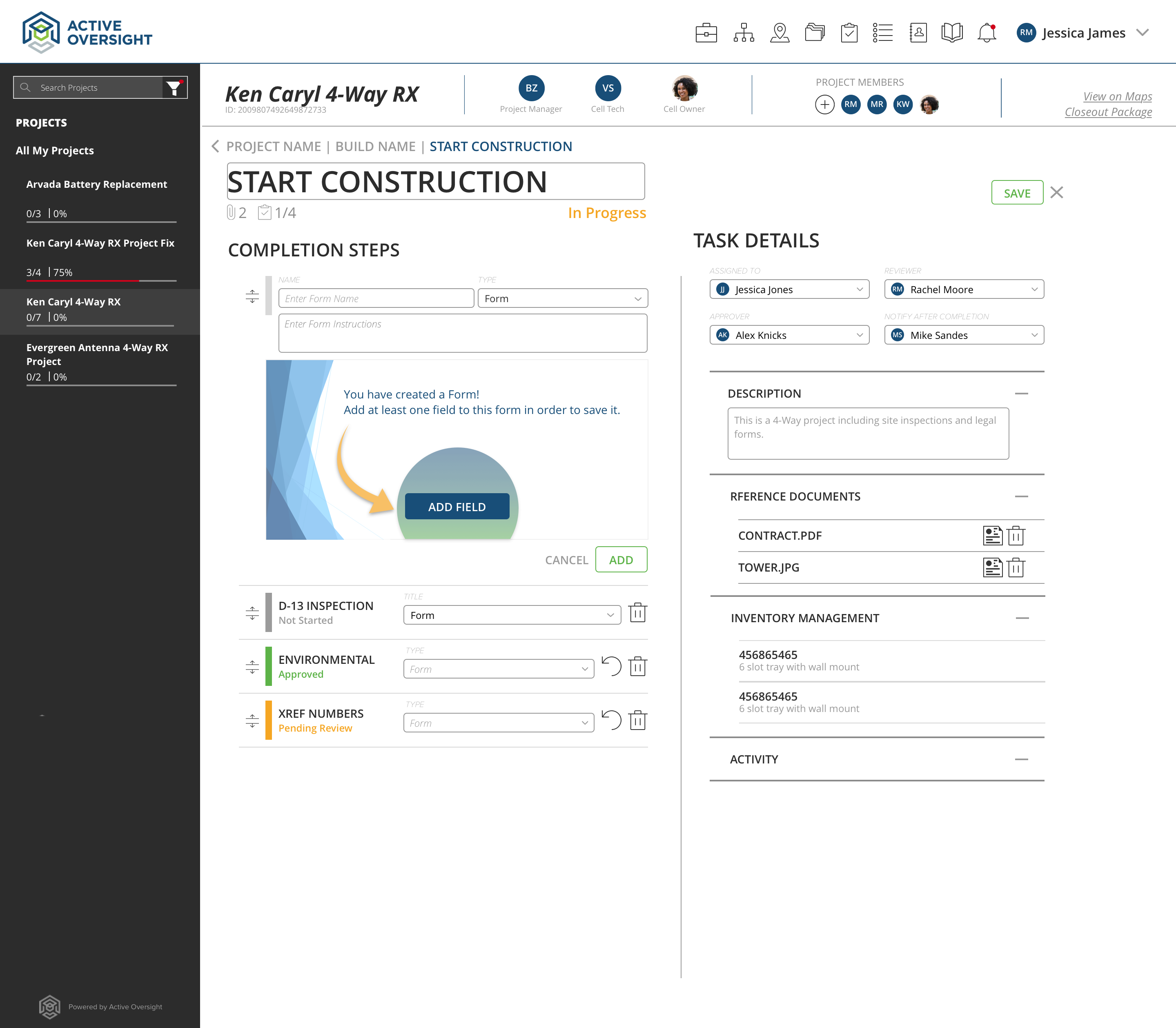
Adding the Form as a Completion Step
- Click the plus (+) icon next to Completions Steps
- Enter in the name of the Form and then select "Form" from the Type drop-down menu
- Add instructions (if applicable)
- Click on "Add Field"
Adding a Field to a Form
You will have 4 different types of Fields to select from. These options include Multiple Choice, Number Entry, Text Entry, and Yes/No questions. You will need to add at least one field in order to save your Form.
- Enter in a Field Label - the question or prompt for this field
- Select your Field Type in your drop-down menu
- If you selected the Multiple Choice Field, you will also need to type in all options separated with commas
- Click on "Add Field"
- Repeat this process with as many fields as you would like for this one Completion Step
- Click "Add" on the lower right of the Completion Step panel once you are done adding fields
*Note: Fields can be edited, reordered and deleted by editing the Task and then expanding your Form Completion Step.

Do you have additional questions? Contact us at activeoversight@finalze.zendesk.com.
Comments
0 comments
Please sign in to leave a comment.