
How to Quickly Assign Users to your Tasks
July 2019
Overview
We know that there are many times where the same users will be completing all Tasks within your Projects. That's why we've introduced Quick Assign! This allows you to quickly assign a Project Member to one or more Tasks all at once.
Adding Project Members
1. Access the Project you need to assign members to
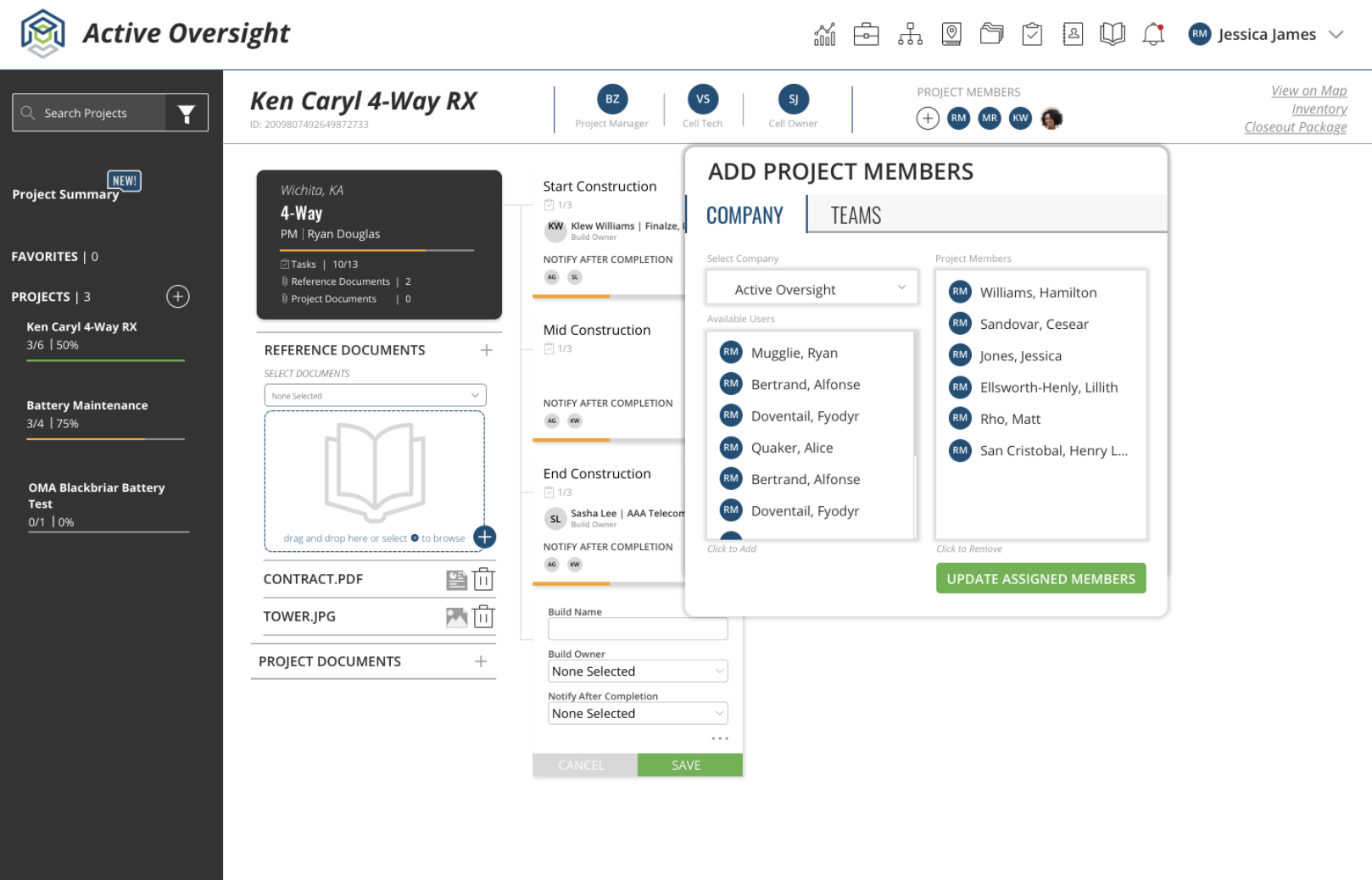
2. If your members aren't already added to the Project, you will want to add them
3. Select the + in the Project header
4. You can choose members individually, or select the Teams tab to add an entire Team
5. Once you've added all your Project members, hit "Update Assigned Members"
Accessing Quick Assign
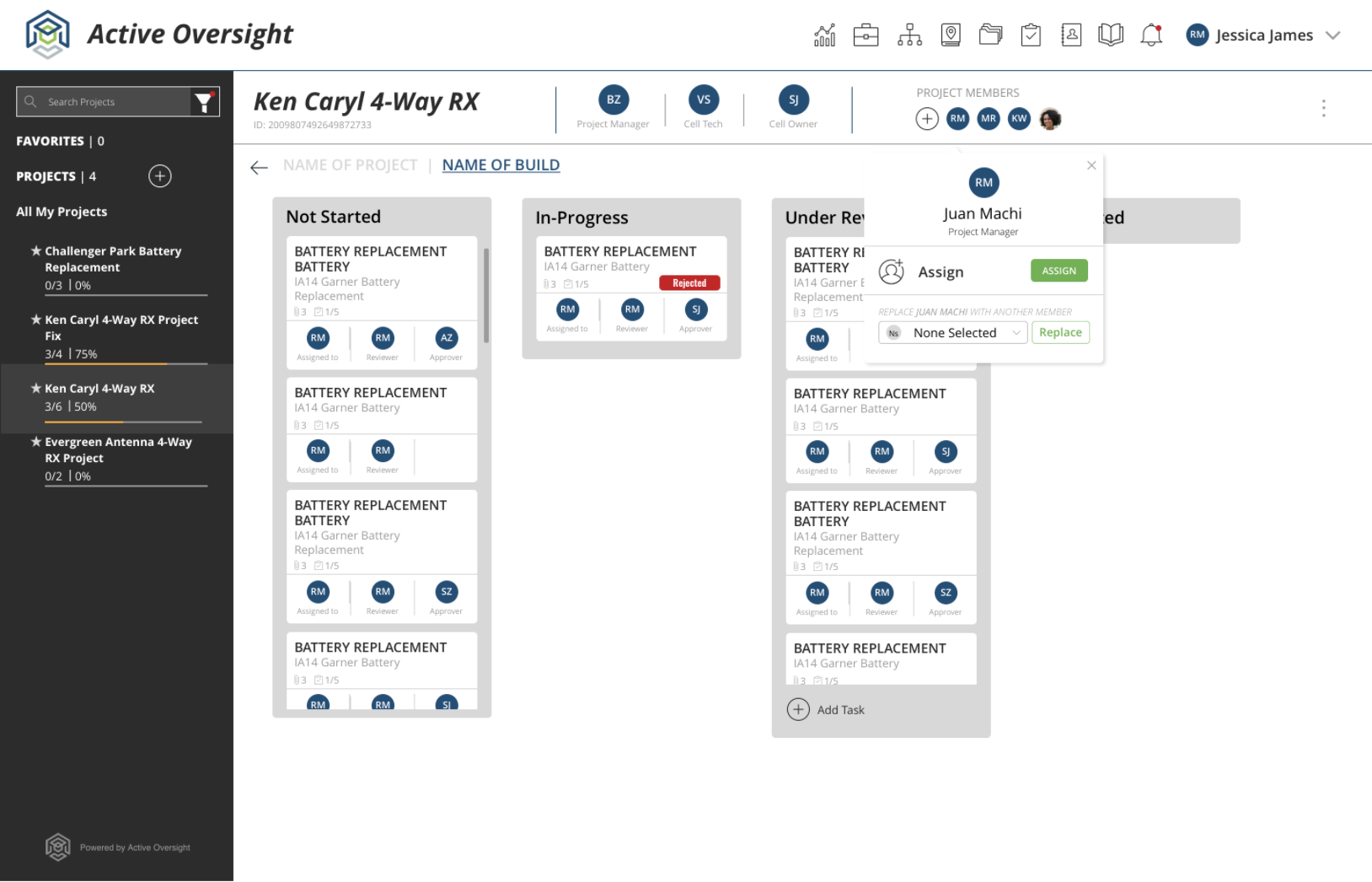
1. To assign a specific member to a Task, you can select their avatar in the Project header and hit "Assign"
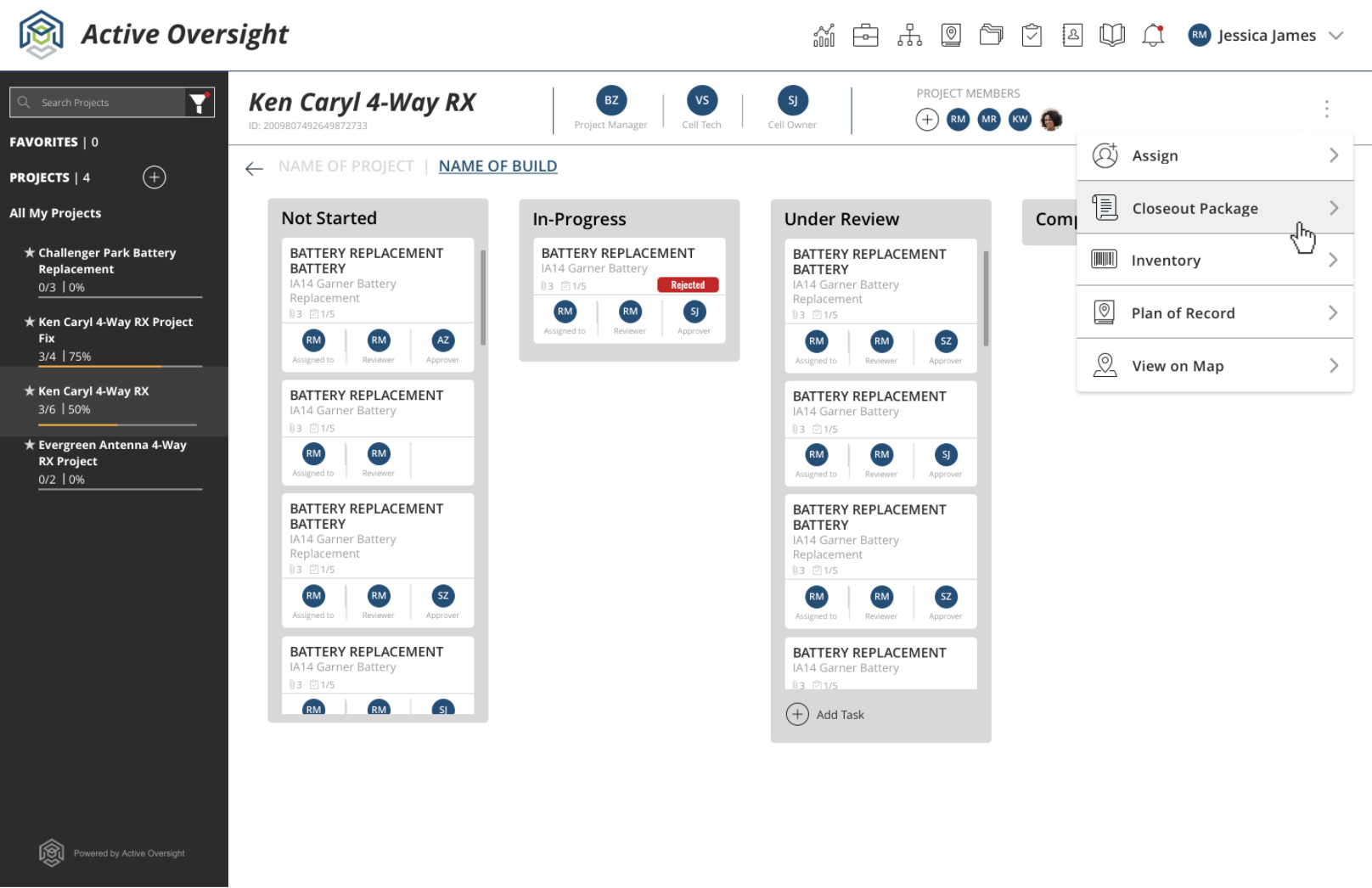
2. You can also access this same view by selecting the ellipses menu (three vertical dots) on the far right and select "Assign"
Assigning Task Assignments using Quick Assign
Once you've accessed our Quick Assign view, you will be able to choose your assignment type, the Project members you want to assign to that assignment, and easily select the Tasks.
1. First, select the Assignment type on the left (Assigned To, Reviewer, Approver, Build Owner, Task Notify or Build Notify).
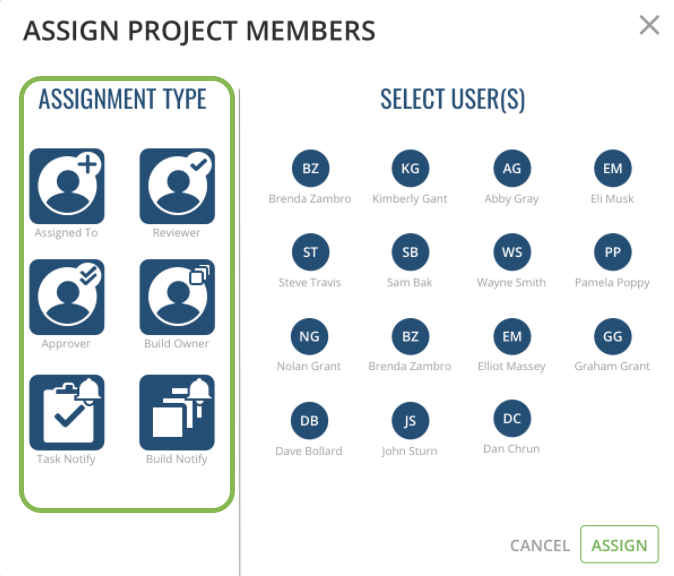
2. Next, select the Project members that need to be assigned to that assignment type.

3. Hit "ASSIGN" to access the Tasks/Builds
4. Select the Tasks or Builds you want to assign the Project member(s) to.
5. Hit "ASSIGN" when you are ready for them to be assigned.
6. You will see their assignments fill up. Repeat the process for all Assignment Types.

Do you have additional questions? Contact us at activeoversight@finalze.zendesk.com.
Comments
0 comments
Please sign in to leave a comment.